📚 Guide Utilisateur ContentDrive
Transformez Google Sheets en un système d'opération de contenu alimenté par l'IA.
Part 1: Installation & Onboarding
Follow these one-time steps to activate ContentDrive in your workspace.
1. Install from Marketplace
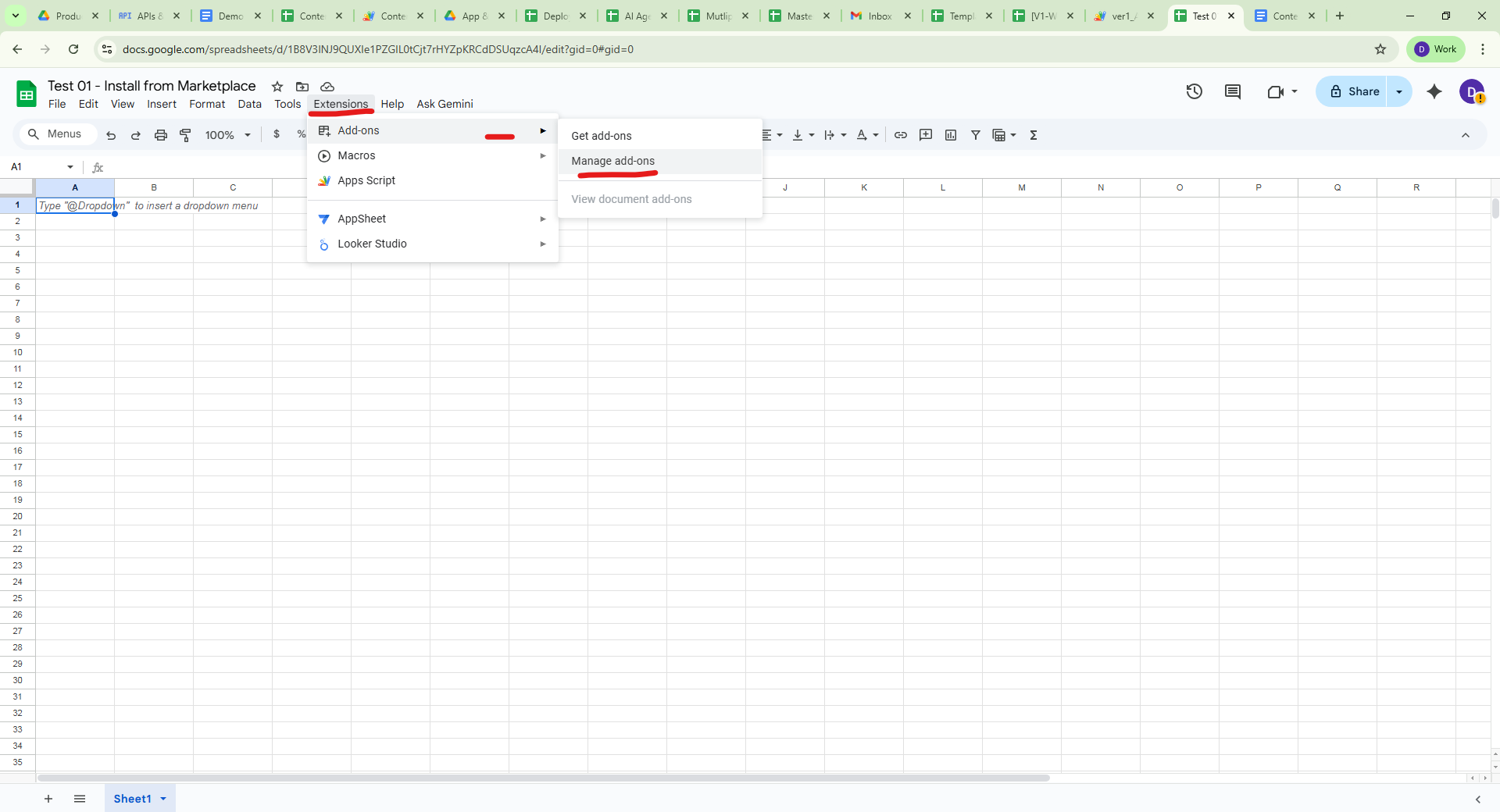
Open a new or existing Google Sheet. In the top menu, go to Extensions > Add-ons > Get add-ons.
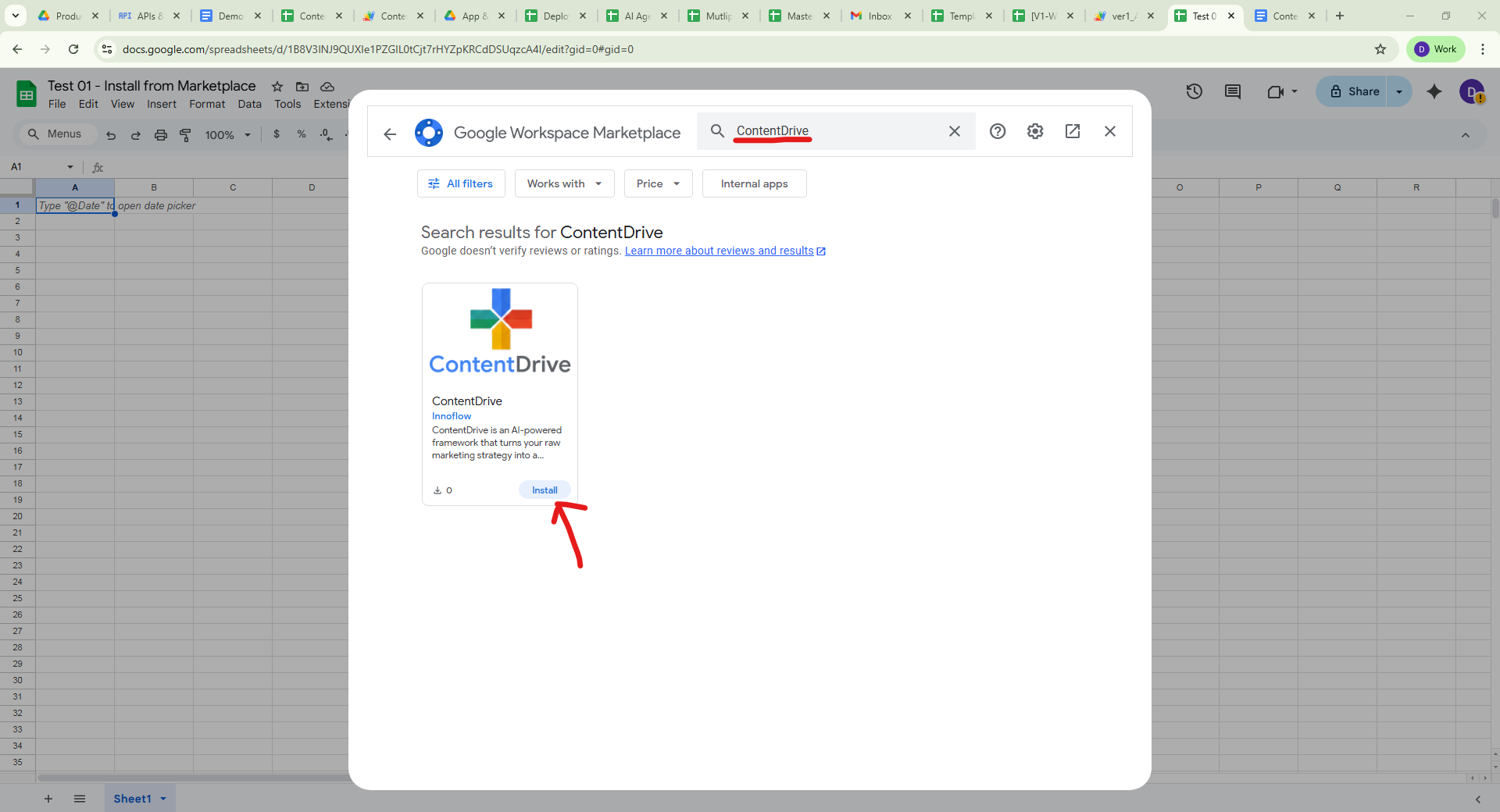
Search for "ContentDrive", click the result, and then click Install. You will need to grant the necessary Google permissions to continue.
2. Initial Setup & Licensing
Once installed, refresh your browser tab (Press F5 or Cmd+R). Note: This is critical for the menu to appear.
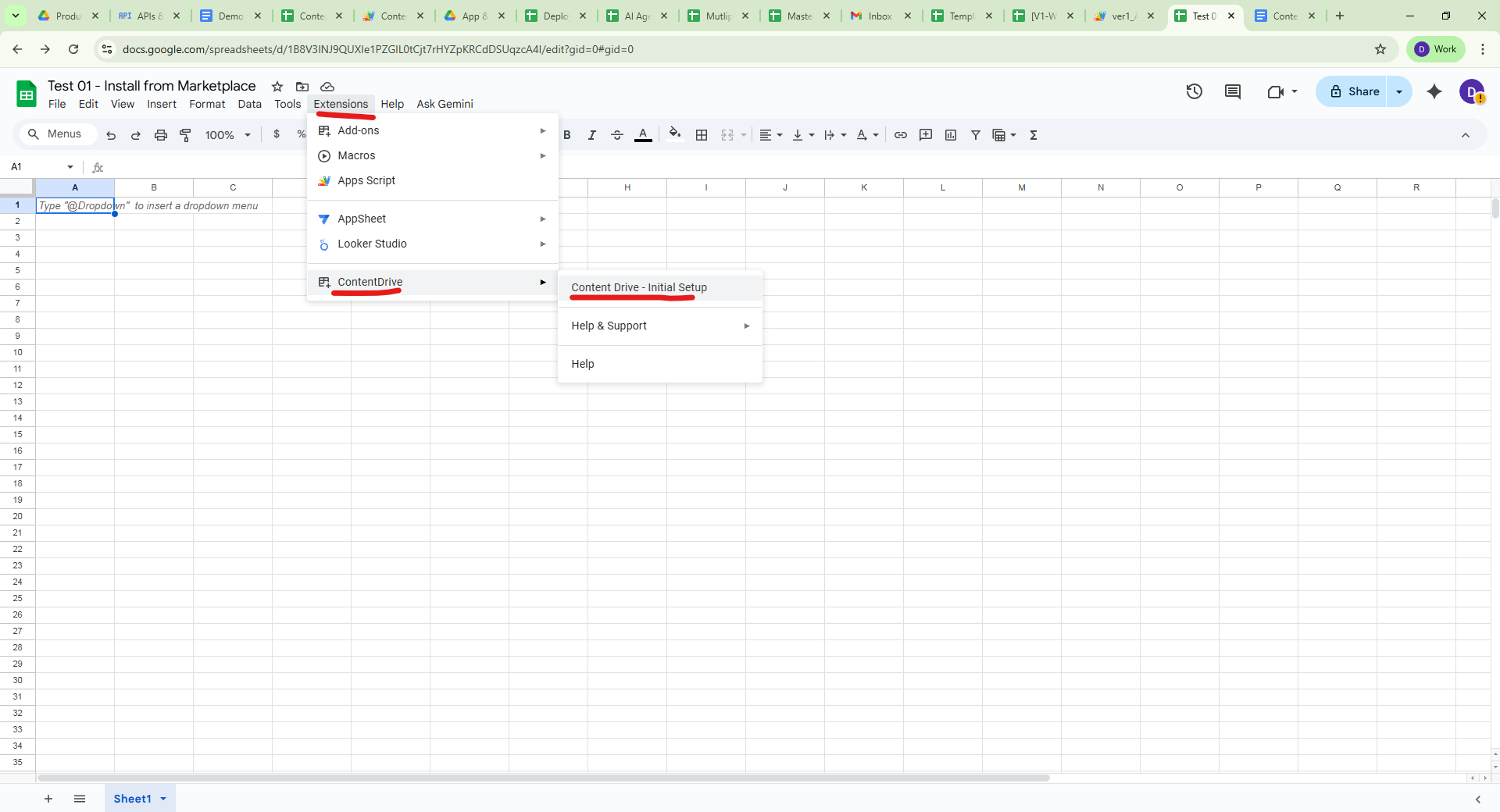
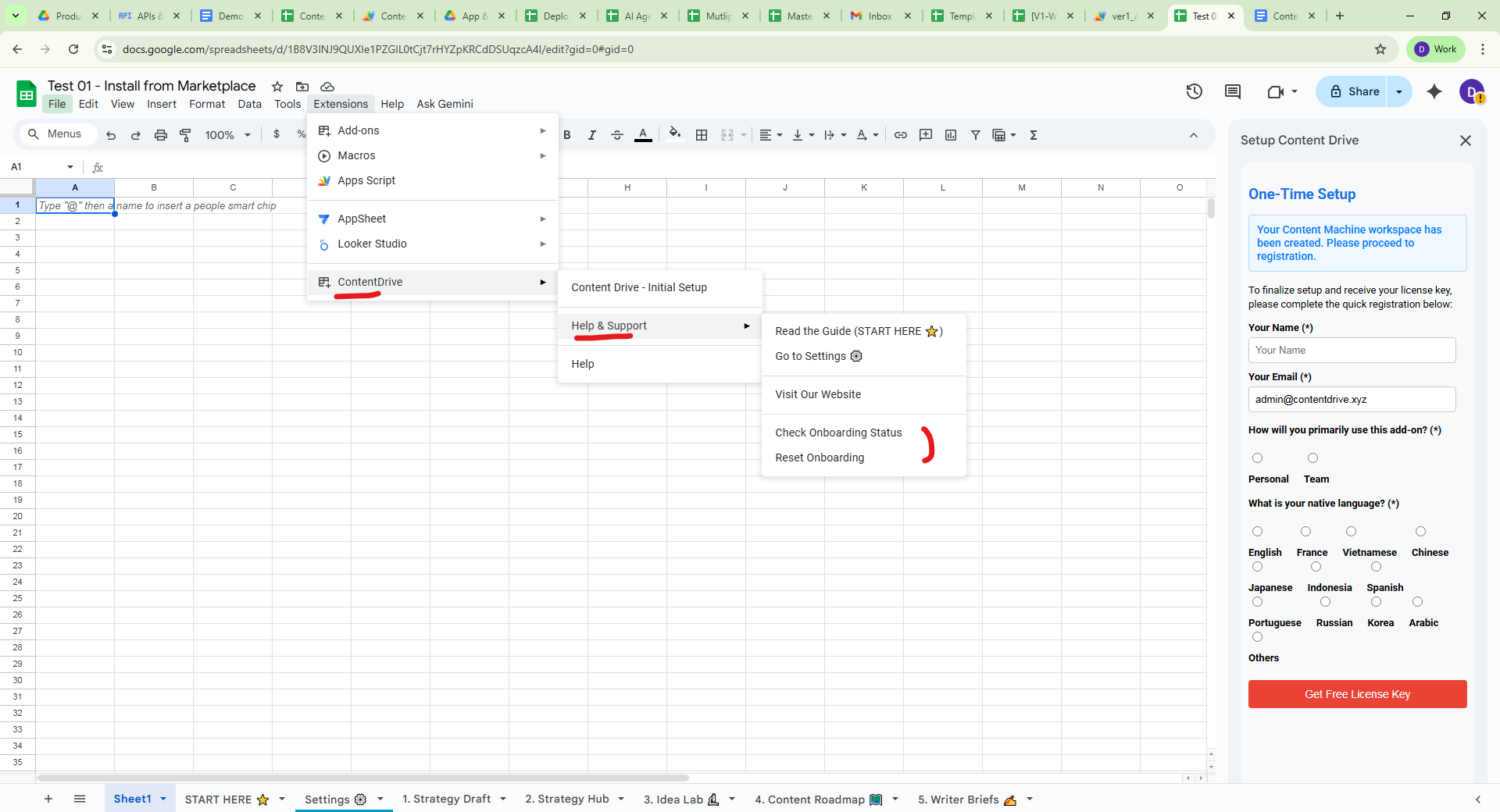
Go to Extensions > ContentDrive > Initial Setup.
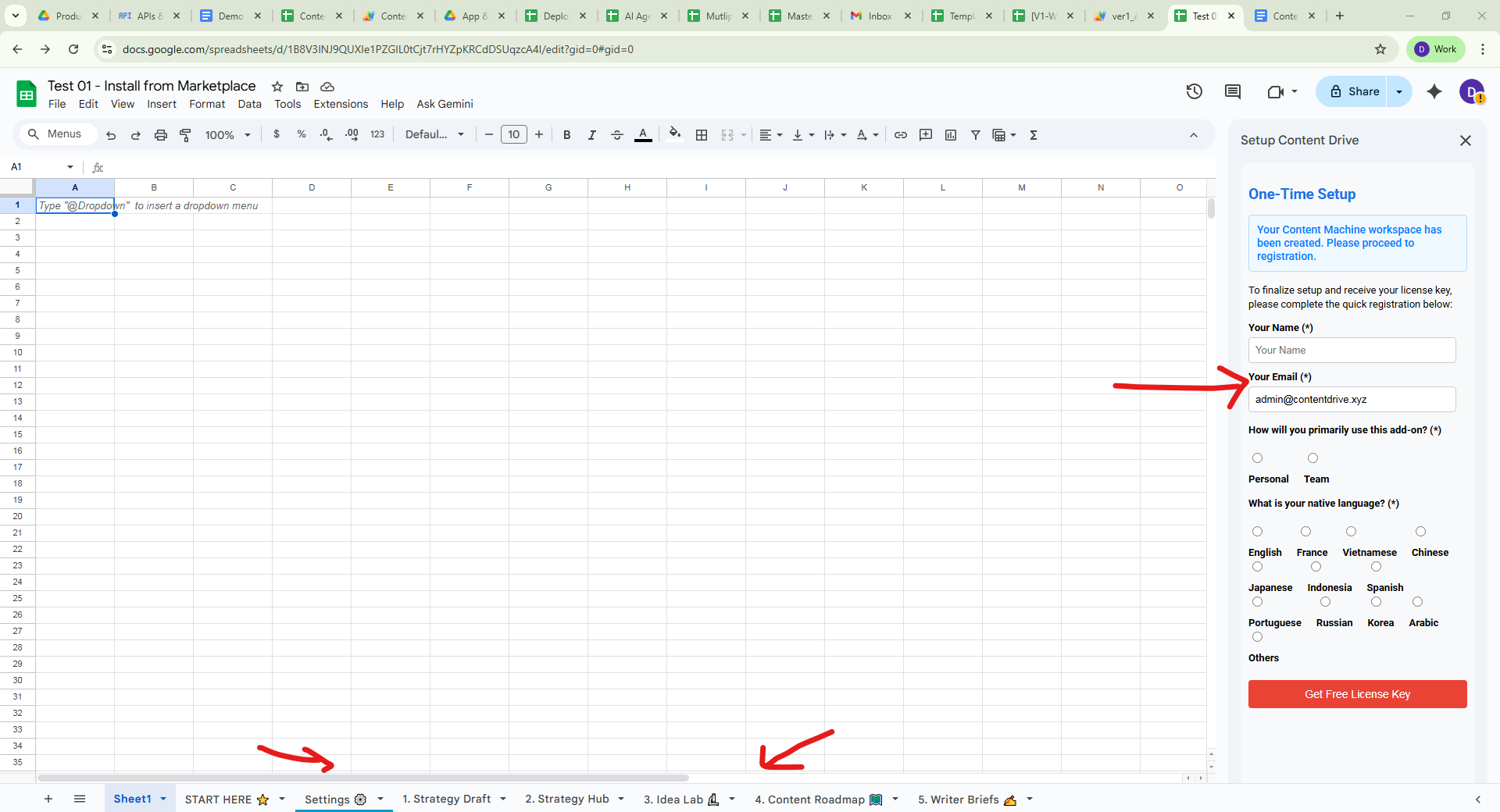
The add-on will automatically generate the required tabs/sheets for you. A sidebar will appear on the right. Fill in your Name and Email to register.
Check your Email: You will receive a License Key. Copy the key and paste it into Cell B2 of the "Settings ⚙️" tab.
⚠️ QA Alert
If the "ContentDrive" menu does not appear after installation, refresh the page (F5). If it still does not appear, go to Help > Check Onboarding Status or Reset Onboarding.
Part 2: The 5-Step Content Workflow
ContentDrive operates on a "Waterfall" logic. You must complete one step to unlock the next.
Step 1: Define Your Strategy
Goal: Teach the AI your brand voice, audience, and core value proposition.
- Human Action: Navigate to the
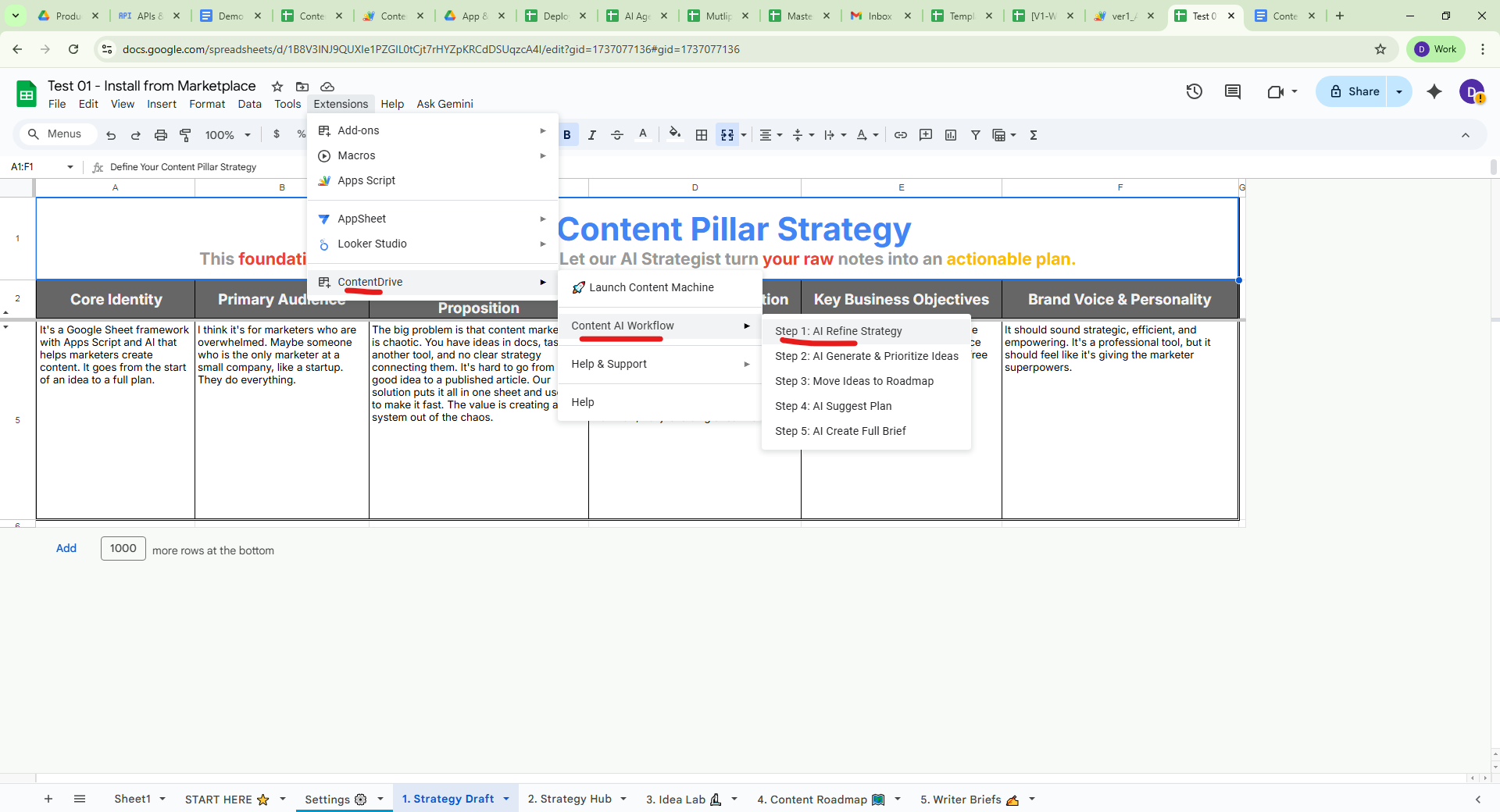
1. Strategy Drafttab and fill in the 6 columns. Do not leave these blank. - AI Action: Go to
Extensions > ContentDrive > Content AI Workflow > Step 1: AI Refine Strategy. - Review: Go to the
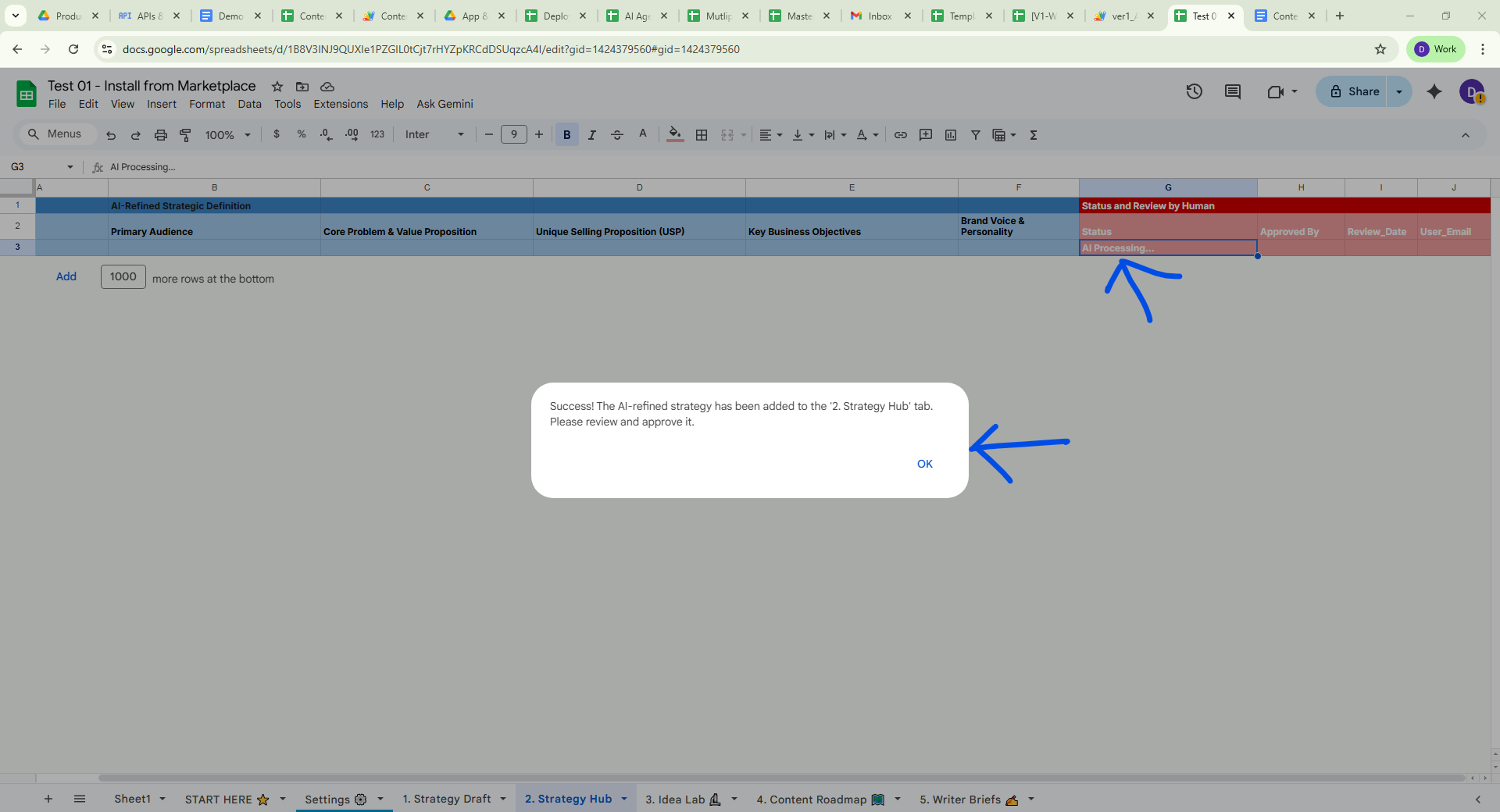
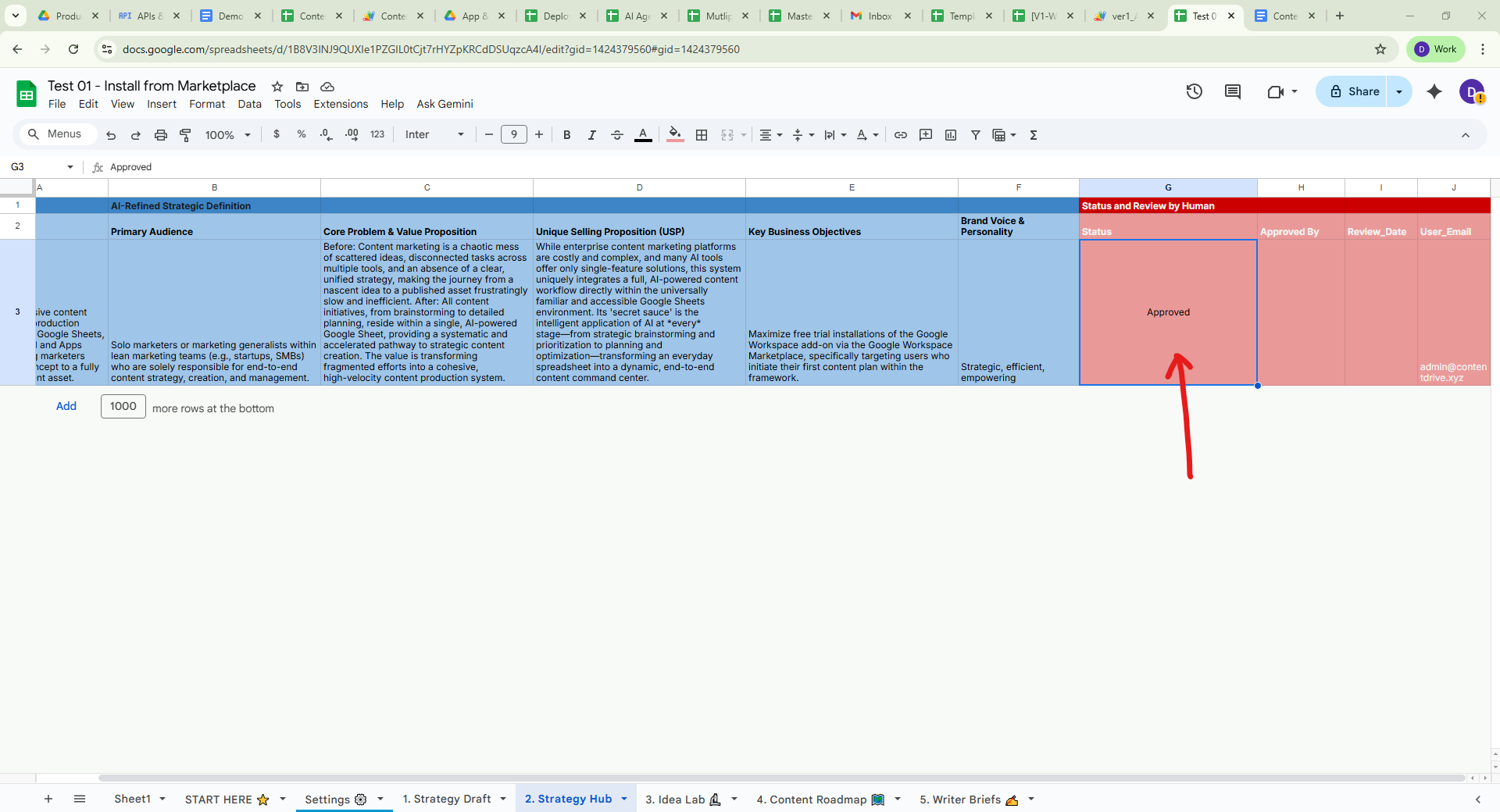
2. Strategy Hubtab. The AI has refined your raw notes used. - Approve: If happy, change the status in Column G to "Approved".
Step 2: Ideation & Prioritization
Goal: Generate topic ideas aligned with the strategy.
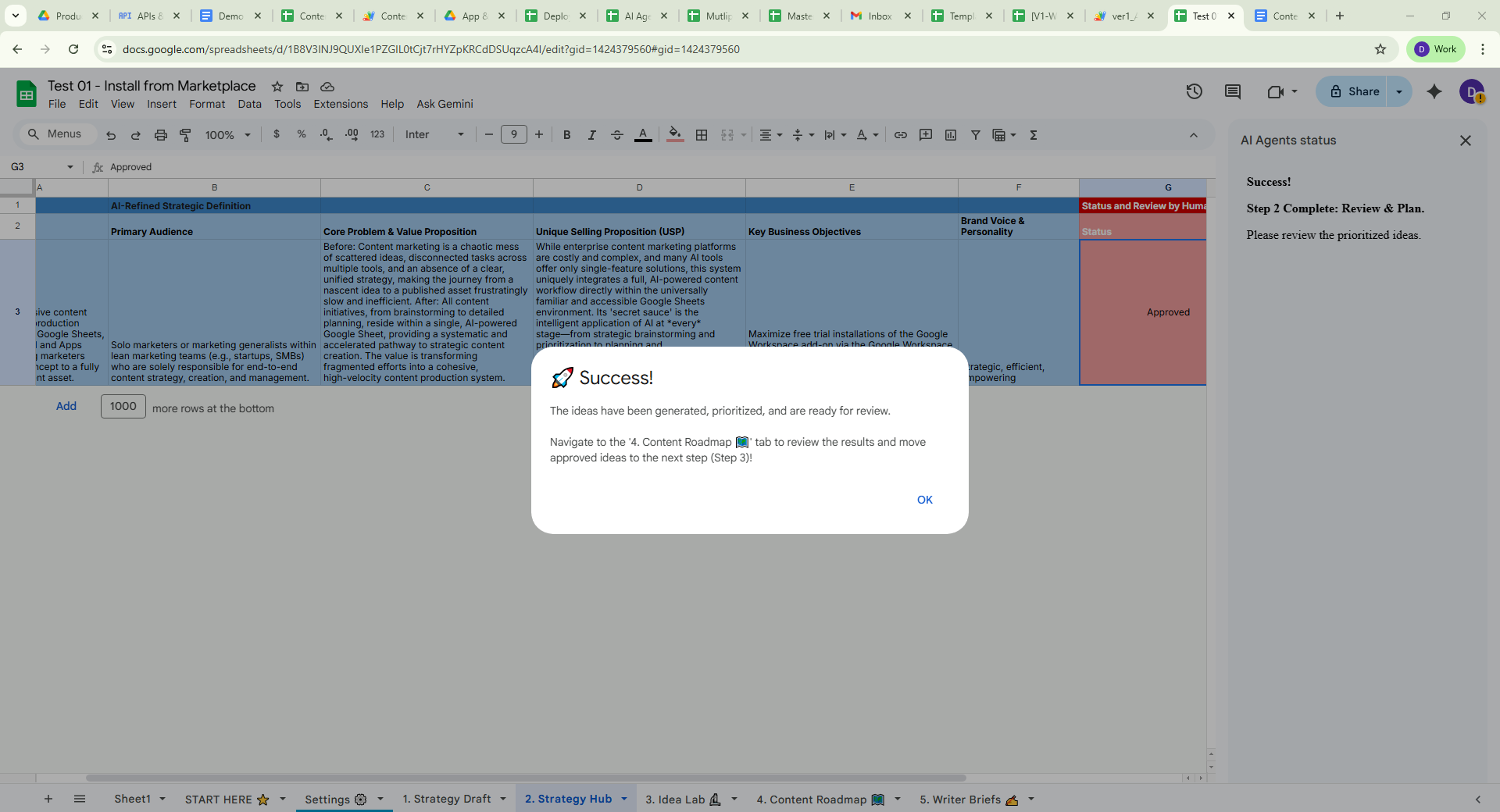
- AI Action: Go to
Step 2: AI Generate & Prioritize. - The AI will read your "Approved" strategy and generate ideas in
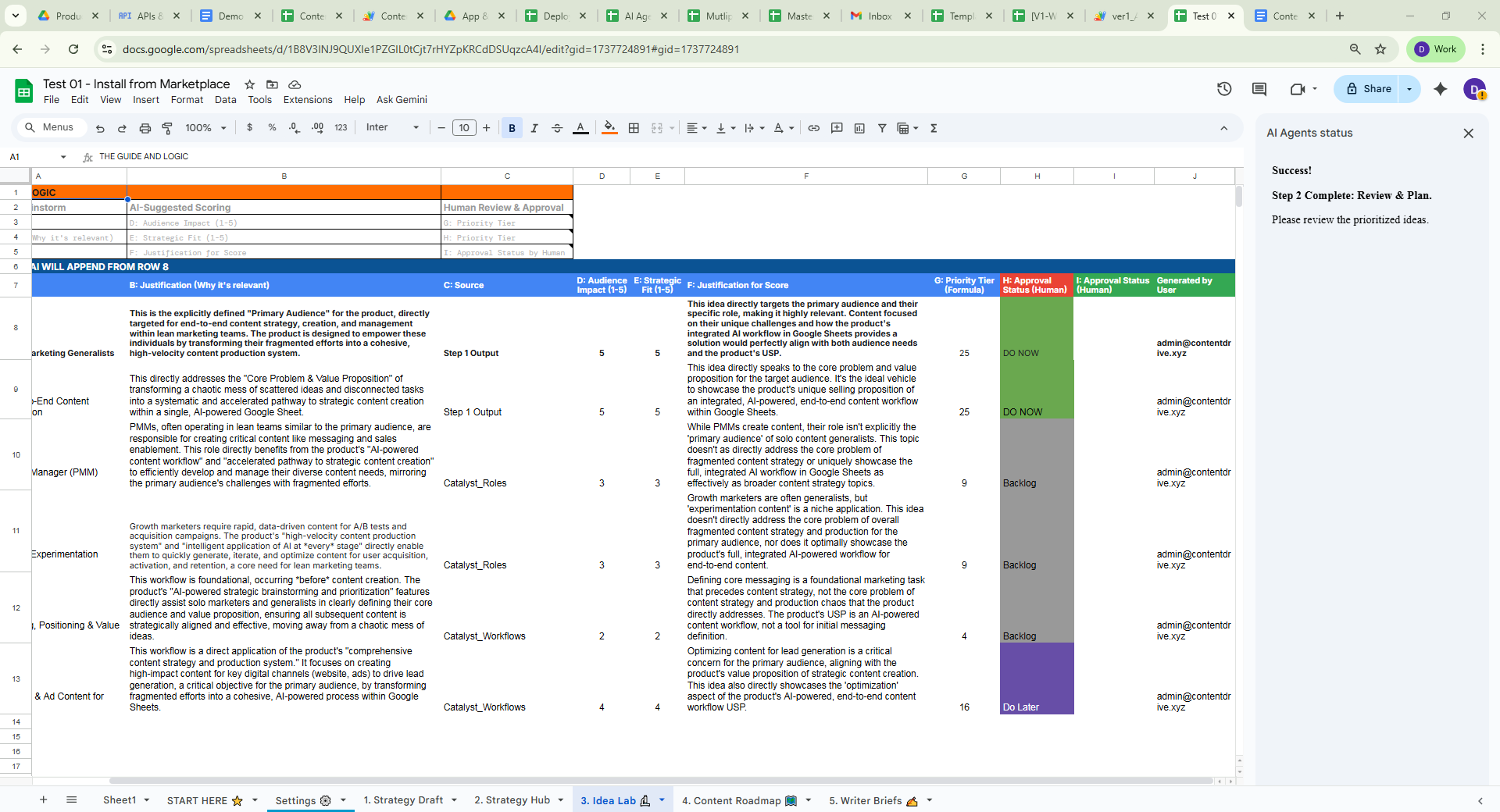
2. Strategy Hub. - Scoring: The AI assigns a "Priority Tier": 🟢 DO NOW, 🟡 Do Later, 🟣 Backlog.
Step 3: Build the Roadmap
Goal: Move ideas to the "Production" pipeline.
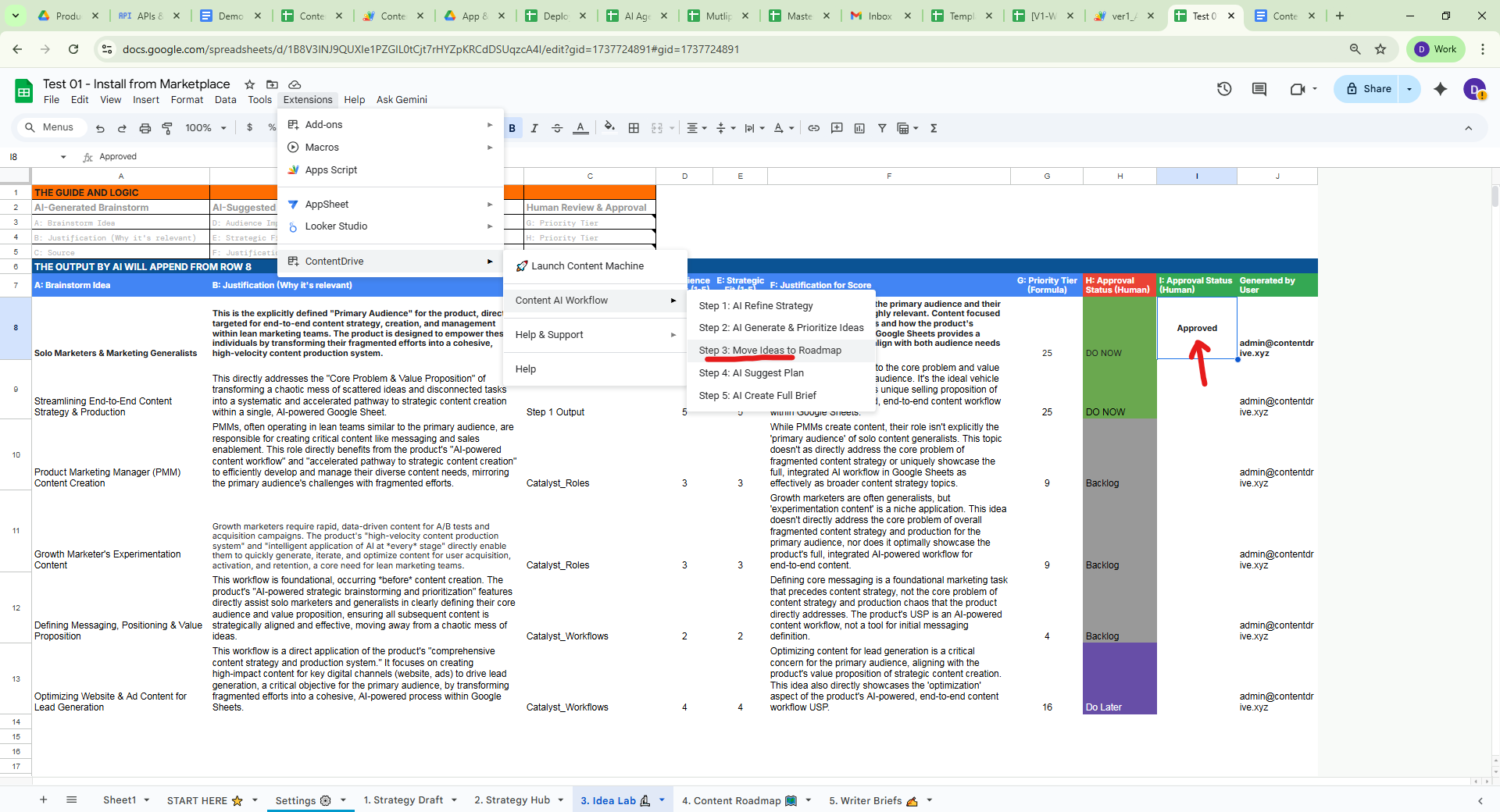
- Human Action: Review generated ideas. Set status to "Approved" for ones you want to write.
- AI Action: Go to
Step 3: Move Idea to Roadmap. - The system moves rows to
4. Content Roadmap 🗺️.
Step 4: Strategic Planning
Goal: Flesh out ideas with angles and keywords.
- AI Action: Go to
Step 4: AI Suggest Planinside the Roadmap tab. - AI fills details: Format, Angle, Title, Persona.
- Human Action: Review. Change status to "Ready for Briefing".
Step 5: Create Content Briefs
Goal: Generate a production-ready document.
- Select the cell of the idea you want to brief.
- AI Action: Go to
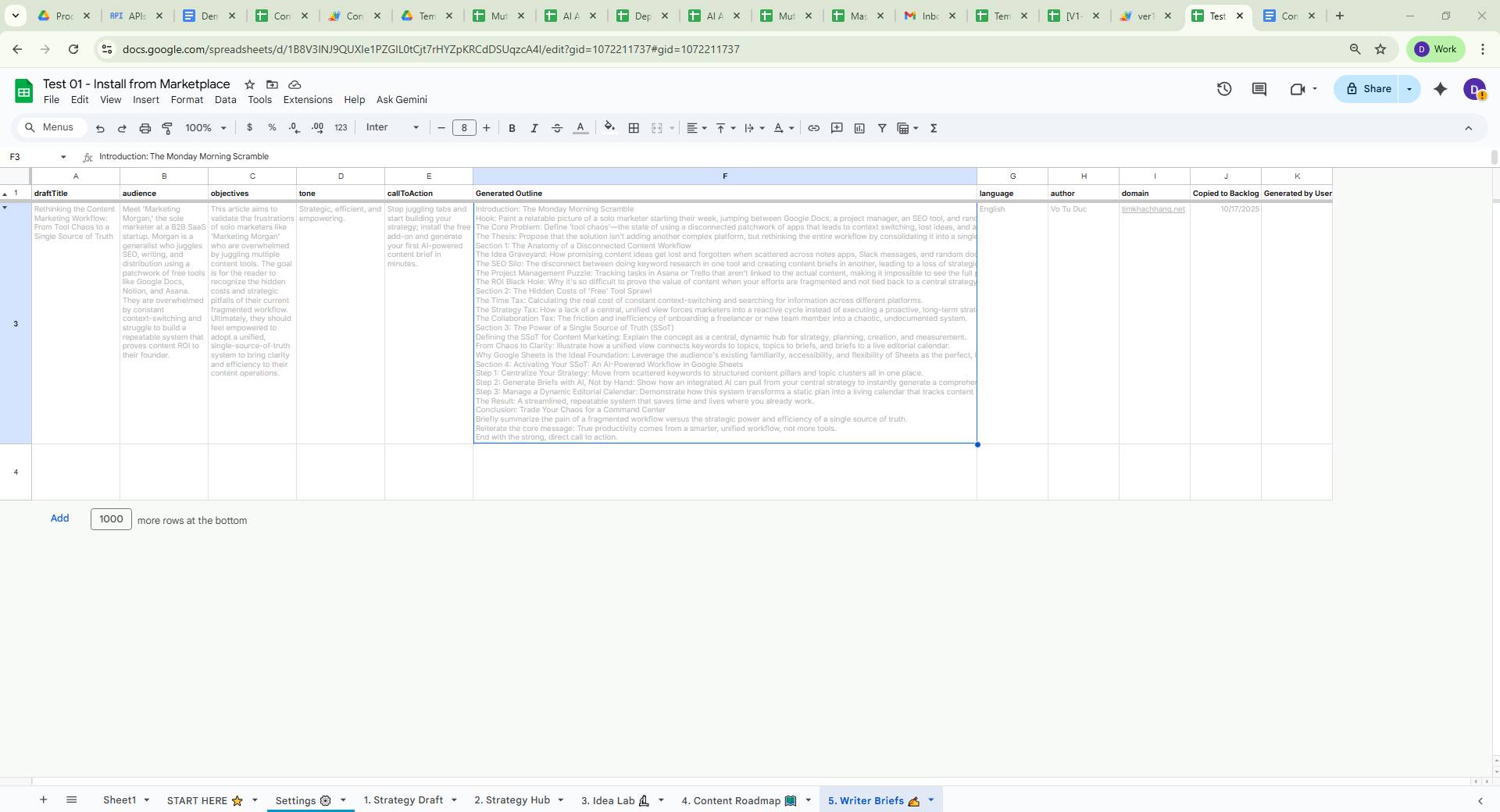
Step 5: AI Create Full Brief. - Output: Detailed brief saved in
5. Writer Briefs ✍️.
Part 3: Advanced Automation
For power users who want to automate drafting and asset creation.
| Feature | Tab Name | Function |
|---|---|---|
| Pineline A | AI Agents: Brief to Article | Auto-writes full article in Google Doc. |
| Pineline B | Digital Asset Suite | Generates image prompts, scripts, and slide deck content. |
🛑 Troubleshooting
- Do Not Rename Tabs: The script looks for specific tab names.
- Exact Spelling Matters: "Approved" is not the same as "approved".
- One Step at a Time: Do not skip steps in the waterfall.